
How to Check if an Email Is Phishing (and Verify the Sender)
Last reviewed: October 2026
The short answer: An email is probably phishing if the sender's address doesn't match the company it claims to be from, if it pressures you to act fast, if its links lead somewhere other than where they say, or if it asks for a password, code or payment. To be sure, check the real sender address, hover over every link, and confirm through the company's official app or website. Or paste the email into PhishGlass for an instant risk score.
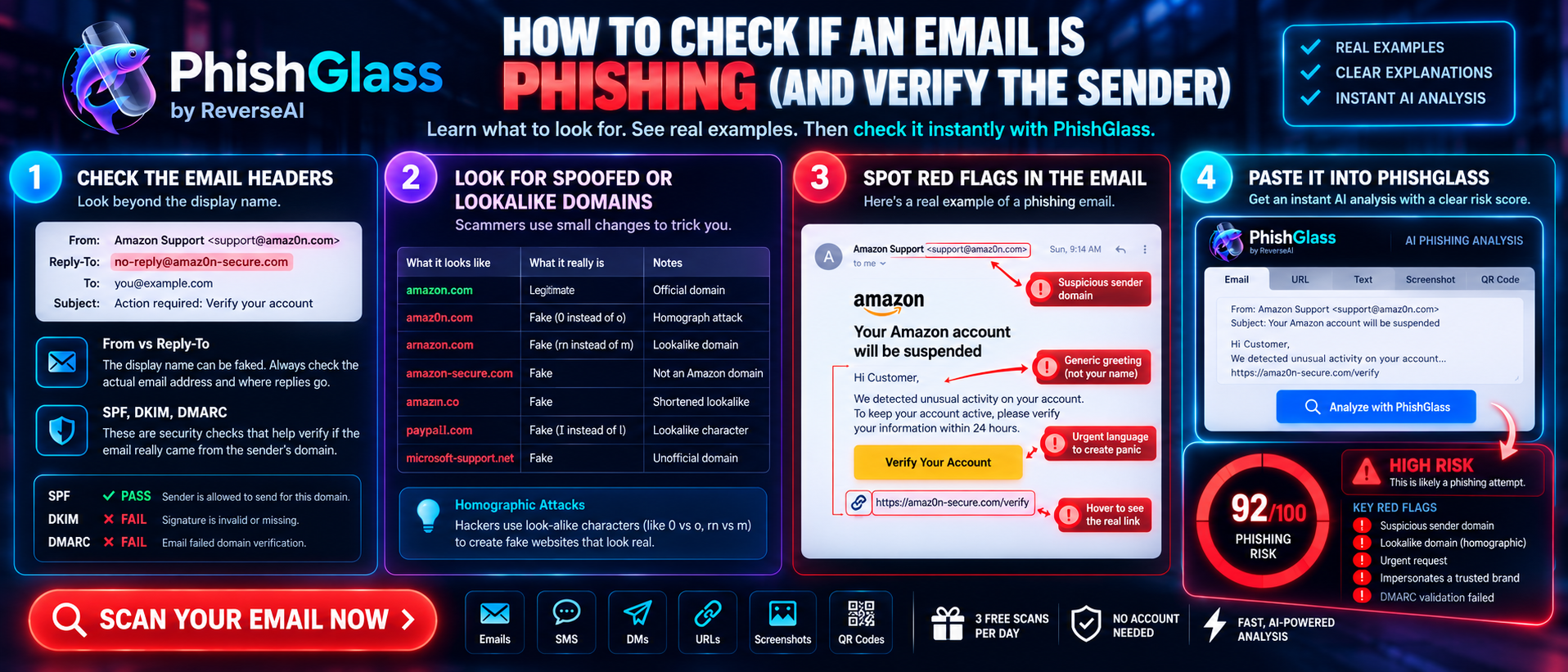
Phishing emails have come a long way from the badly spelled messages of a decade ago. Today's versions copy real logos, use convincing language and often land right in your main inbox. The good news is that the same few checks work on almost all of them, and once you know what to look for, they take about a minute.
This guide walks through each check in order, with real-world examples.
The 7 signs an email is phishing
The sender's address doesn't match the company
The name you see at the top of an email is just a label, and anyone can set it to anything. What matters is the address behind it. Click or tap the sender's name to reveal it. Real companies send from their own domain, the part after the @ sign. Scammers use lookalikes.
The reply-to address is different
Some scam emails look fine at the top, but when you hit reply, the response goes somewhere else. Check that the "Reply-To" address matches the sender. A mismatch is a strong warning sign.
It creates urgency or fear
"Your account has been suspended." "Payment failed, update now." "We detected suspicious activity." Phishing works by making you act before you think. Real organizations rarely demand immediate action by email alone, and they'll give you another way to confirm.
The links don't go where they say
On a computer, hover your cursor over a link without clicking, and the real destination appears in the corner of your browser. On a phone, press and hold the link to preview it. Watch out for addresses that don't match the company, shortened links in emails from banks or employers, and long addresses stuffed with random characters.
It asks for something it shouldn't
A genuine company will not email you asking for your full password, a one-time code, your card's security code or your remote access. If an email wants any of these, or wants you to copy and paste a command into your computer, treat it as phishing.
The attachment is unexpected
Invoices, shipping documents and "secure messages" are common disguises. Be cautious with files that end in .zip, .html, .iso or .exe, with Office documents that ask you to "enable macros" or "enable editing," and with PDFs that are just a picture of a button. If you weren't expecting it, confirm with the sender through a different channel first.
It feels slightly off
A greeting like "Dear customer" from a company that knows your name, a strange sign-off, an odd time of day, or a tone that isn't quite right. Don't ignore that feeling, but don't rely on it alone either, because well-written scam emails can feel perfectly normal.
Common lookalike domain tricks
Scammers register near-identical addresses to pass a quick glance. The rule of thumb: read a domain from right to left, starting at the first single dot before the ending. That's who actually owns it.
| Trick | Example (defanged) | What's wrong |
|---|---|---|
Swapped character | support@paypa1[.]com | A number 1 replaces the letter l |
Letters that merge | billing@arnazon[.]com | "rn" looks like "m" at a glance |
Real name buried in a subdomain | login.microsoft.com.secure-check[.]net | The real domain is the last part before the ending: secure-check.net |
Wrong ending | alerts@yourbank[.]co | .co instead of .com |
Free webmail pretending to be a company | yourbank.support@gmail[.]com | Companies don't send official mail from free accounts |
How to verify the sender properly
Checking the visible address is step one. If you want to go further, you can look at what your email provider has already worked out about the message.
In Gmail: open the email, click the three dots, and choose Show original. Look at the top of the page for SPF, DKIM and DMARC.
In Outlook: open the email, go to File → Properties and read the Internet headers box. In the new Outlook, look for the option to view message details or source.
In Apple Mail: open the email and choose View → Message → All Headers.
Three labels matter, and you don't need to be technical to read them:
- SPF checks whether the sending server is allowed to send for that domain.
- DKIM checks that the message wasn't altered and carries a valid signature from the domain.
- DMARC tells receiving servers what to do if SPF or DKIM fail.
If all three say pass and the domain is the real one, that's reassuring. If they say fail or none on an email that claims to be from a big company, be suspicious.
One important caveat: a pass doesn't prove the email is safe. Scammers can register their own lookalike domain and set up these checks properly for it. That's why the domain name itself, and what the email asks you to do, still matter most.
The easy way: check it with PhishGlass
Reading headers and decoding domains is useful to know, but it isn't how most people want to spend their morning. That's where PhishGlass comes in.
PhishGlass is an AI-powered tool from ReverseAI that checks suspicious emails, links and messages for signs of phishing, including spoofed domains, and gives you a clear risk score and tips on what to do next.
To check an email:
- Copy the email's text, or the suspicious link inside it. Never click the link to test it.
- Paste it into PhishGlass.
- Read the risk score and the explanation of what looked suspicious.
- Follow the tips to delete, report or verify the message another way.
Why use a tool when you can learn the signs? Because tiredness, stress and a convincing design all make people miss things. A second opinion in seconds costs you nothing. PhishGlass is a helpful check, not a guarantee, so for anything involving money or logins, always confirm with the company directly.
What to do with a phishing email
- Don't reply, click or open attachments. Even "unsubscribe" links in phishing emails can confirm your address is active.
- Report it. Use your email app's Report phishing option, which helps train filters for everyone. If it impersonates a company, forward it to that company's official abuse or fraud address. In the US, you can forward to reportphishing@apwg.org. In the UK, forward to report@phishing.gov.uk. In Australia, report at scamwatch.gov.au. In Singapore, report through ScamShield. In India, report at cybercrime.gov.in.
- Delete it. Once reported, remove it from your inbox and trash.
- If you already clicked or replied, change the password for that account right away, turn on two-factor authentication, and contact your bank if any financial details were involved. For a full step-by-step, see our guide to what to do if you clicked.
Frequently asked questions
How can I tell if an email is phishing?
Check the sender's real address, hover over links before clicking, look for urgency or requests for passwords and payments, and treat unexpected attachments with suspicion. If you're still unsure, confirm via the company's official app or website, or scan the email with PhishGlass.
How do I verify an email sender's address?
Open the email, click or tap the sender's name to reveal the full address, and check that the domain matches the real company exactly. For extra confidence, look at the SPF, DKIM and DMARC results in the message headers, but remember that a pass doesn't guarantee safety.
Can an email be phishing if it comes from someone I know?
Yes. If a friend's or colleague's account has been hacked, scammers can send phishing emails from it. If a message from a known contact seems unusual, such as an unexpected link or a request for money, confirm by calling or messaging them separately.
Is it safe to open a phishing email?
Simply opening an email is usually low risk with modern email apps, but clicking links, downloading attachments or replying is where the danger starts. Blocking remote images in your email settings adds a layer of protection.
What does SPF, DKIM and DMARC mean in an email?
They are three technical checks that help confirm an email really came from the domain it claims. SPF checks the sending server, DKIM checks the message's digital signature, and DMARC sets the rule for what happens when those checks fail. A pass is a good sign but not proof of safety.
Can I check a suspicious email for free?
Yes, there are several free ways: check the sender and links yourself using the steps above, use your email provider's built-in reporting tool, or scan the message with PhishGlass.
What should I do if I clicked a link in a phishing email?
Disconnect from any page that asked for information, change the password on the affected account from a trusted device, turn on two-factor authentication, and contact your bank if you shared payment details. Then report the email.
Stop guessing. Check it.
You don't need to be a security expert to catch most phishing emails. You just need a minute, and a good second opinion.
Scan an email with PhishGlass